What Is GitHub Codespaces?
GitHub Codespaces is a cloud-based development environment that lets you write, edit, and run code directly in your browser using Visual Studio Code. Instead of installing compilers, interpreters, or frameworks on your computer, Codespaces provides a ready-to-use environment that mirrors a local setup. This makes it perfect for working on projects without needing to install anything locally.
Codespaces is especially useful for students, teams, and open-source contributors. It ensures that everyone works in the same environment, reducing compatibility issues and saving time on setup.
Creating a Codespace
Follow these steps to launch your first Codespace:
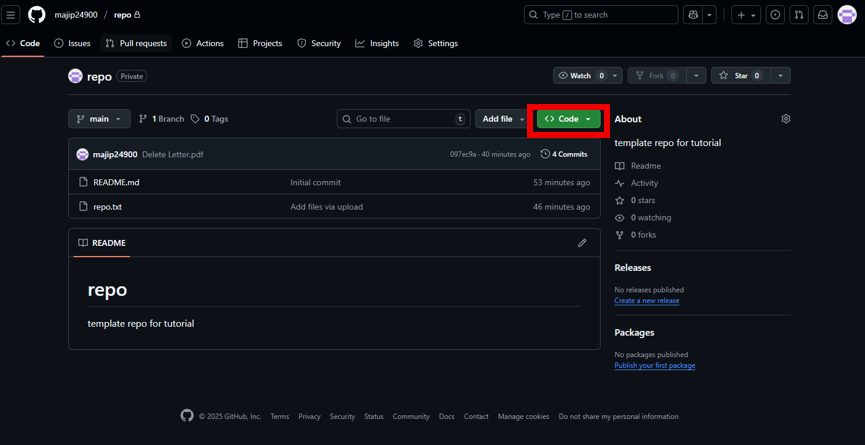
- Open your repository on GitHub.
- Click the green Code button.
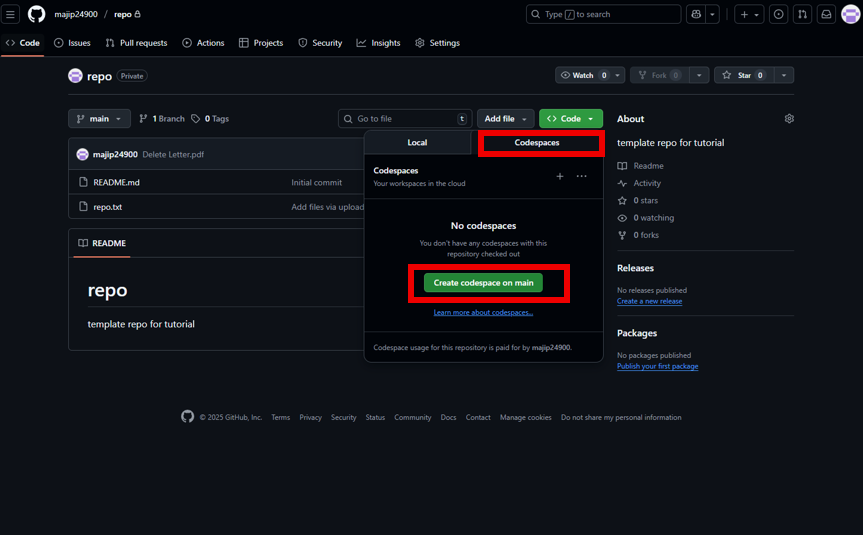
- Select the Codespaces tab.
- Click Create codespace on main.
- Wait a few moments while your environment loads in the browser.
Working Inside a Codespace
Once your Codespace is ready, you’ll see a familiar Visual Studio Code interface. Here are the key features:
- File Editing : Use the Explorer panel to open and edit files just like in VS Code.
- Terminal Access : Open the integrated terminal to run commands, install packages, or compile code.
- Extensions : Click the Extensions icon to install language support, linters, or productivity tools.
- Port Forwarding : Preview web applications by forwarding ports directly from your Codespace.
This environment behaves almost exactly like a local VS Code setup, but everything runs in the cloud.
Saving and Committing Changes
Any changes you make in Codespaces can be committed and pushed directly to your GitHub repository:
- Open the Source Control panel.
- Review your changes and write a commit message.
- Click Commit and then Push to sync with GitHub.

This workflow ensures that your cloud‑based edits are tracked and versioned just like local changes.
Why Use Codespaces?
- No setup required. Just open your browser and start coding.
- Works on any device. Perfect for laptops, tablets, or shared computers.
- Consistency. Everyone on your team uses the same environment.
- Flexibility. Great for quick edits, testing, or collaborative development.
Continue to Version Control
Now that you’ve explored Codespaces, you’re ready to learn how to track changes with commits and branches. Visit the Version Control page to continue.